

Logging In
Follow this link: https://widma.powerappsportals.us/
On the home page Click “Sign In” in the upper right hand corner.

Login Using your MyWisconsinID information
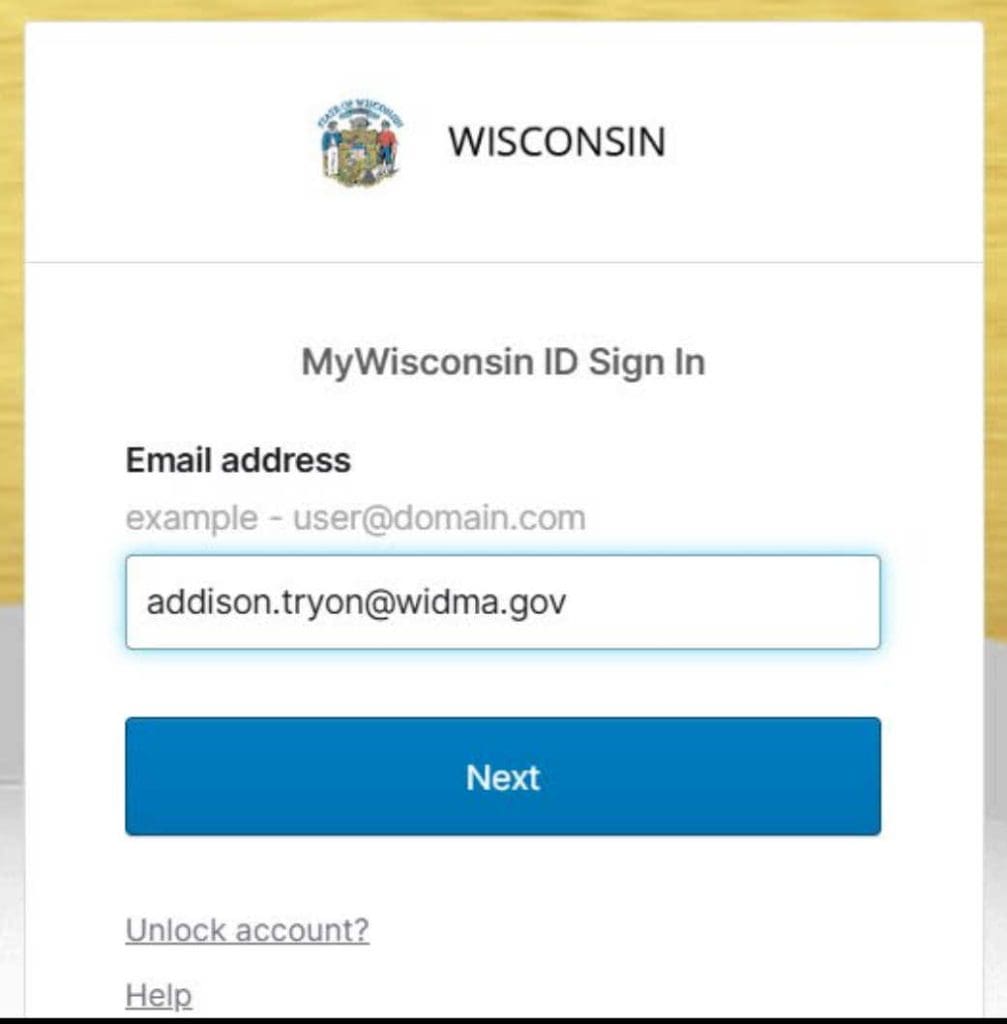
Don’t have a MyWisconsinID?
Follow this link to create one: https://det.wi.gov/pages/mywisconsin_ID_Self_Registration.aspx
Creating a Profile in the System
Click on your name in the upper right hand corner and then select Profile

Enter Your Name, Email and Phone Number
NOTE: This is the information that will be used to contact you if there are questions.

Select National Guard Certifying Official from the Contact Type drop down list

Select Your Branch of the National Guard
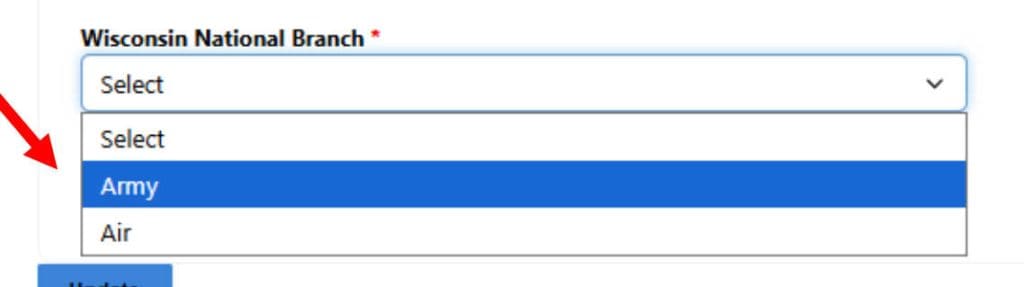
- Click Update
- Email the DMA Tuition Grant Administrator (TGA) at wingtuitiongrant@widma.gov requesting access to be approved as a NGCO.

You will get a message that reads “Your request to update your profile has been submitted successfully!” This means your request to be added as a National Guard certifying official has been submitted.
You will have to wait for it to be approved by the DMA TGA before you can access any applications.
You will be notified that you were approved via a response email from the DMA TGA.

Certifying an Initial Application
Navigate Back to the Home Page and Click on List Application then Select Initial Application to Review applications from Schools for Students

Click on the SSN to see an Application

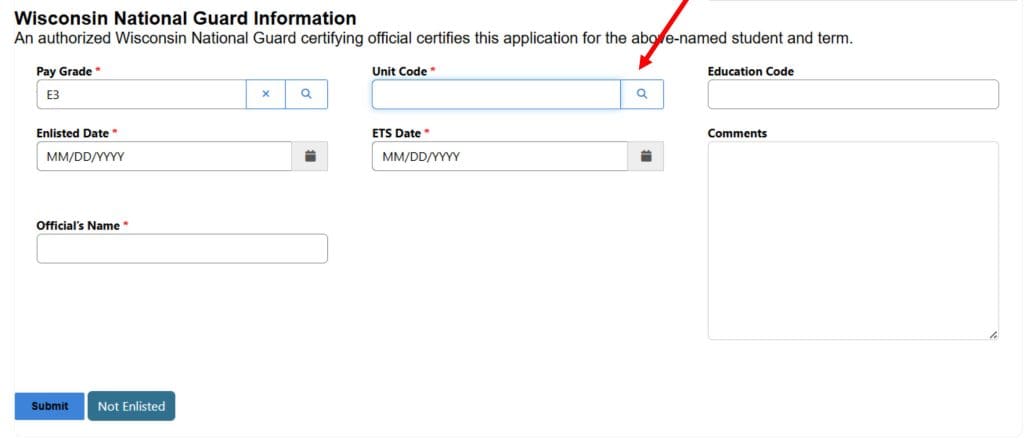
When you click through, student information will open. Scroll down to the Wisconsin National Guard Information section of the application.
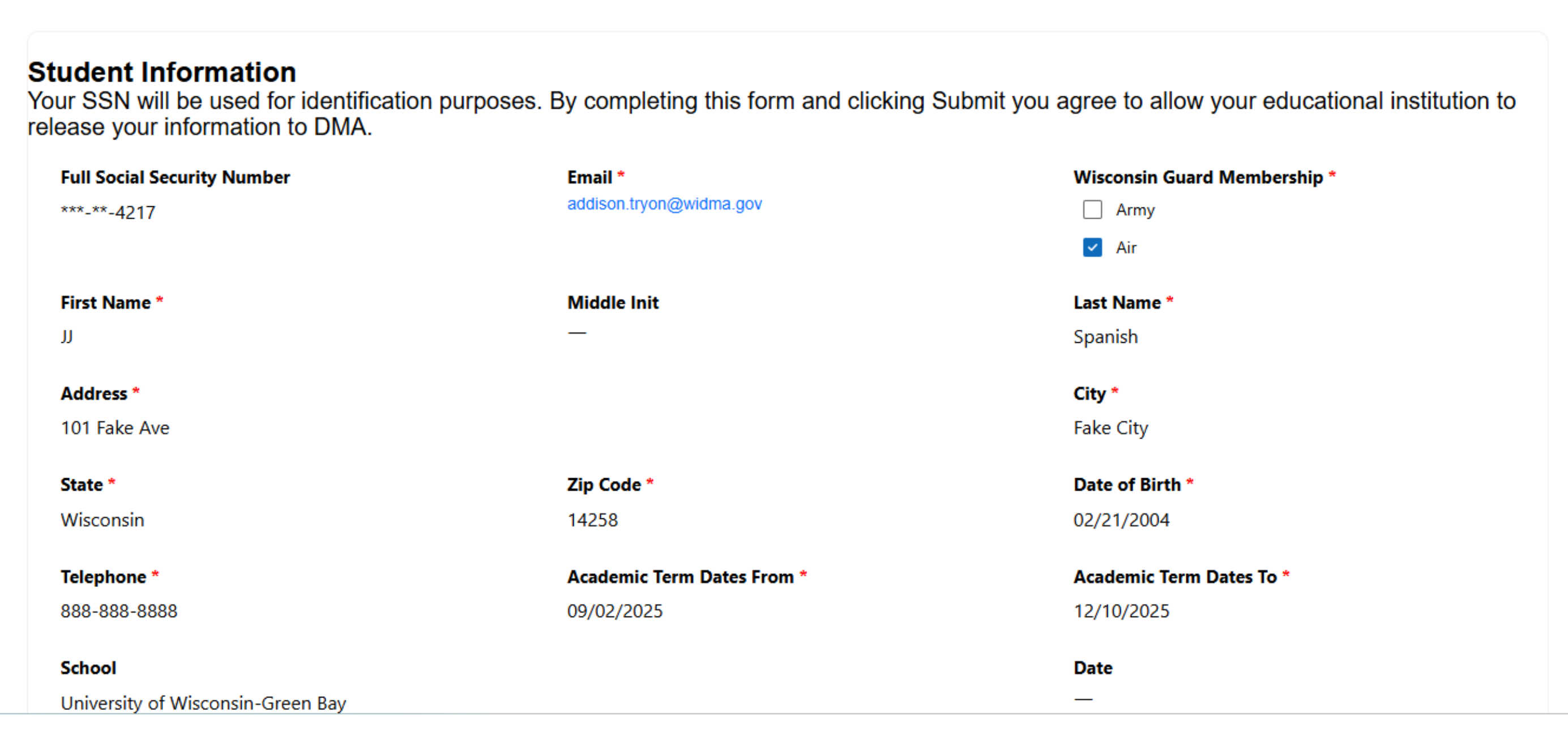
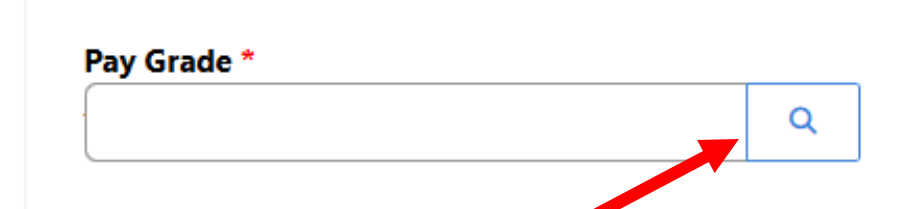
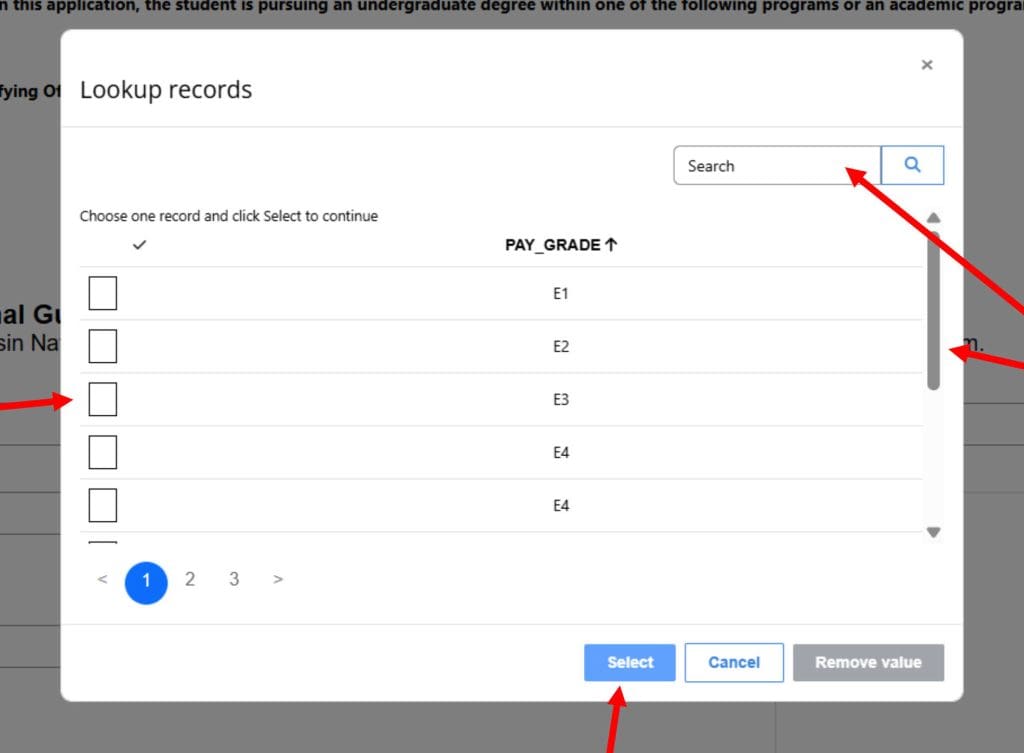
Search for the Student’s Pay Grade by Clicking on the Magnifying Glass
- Search for the Pay Grade for the Student Either by Typing into the Search Box or by Scrolling
- Check the Box next to the Correct Pay Grade
- Click on Select
Search for the Student’s Unit by Clicking on the Magnifying Glass
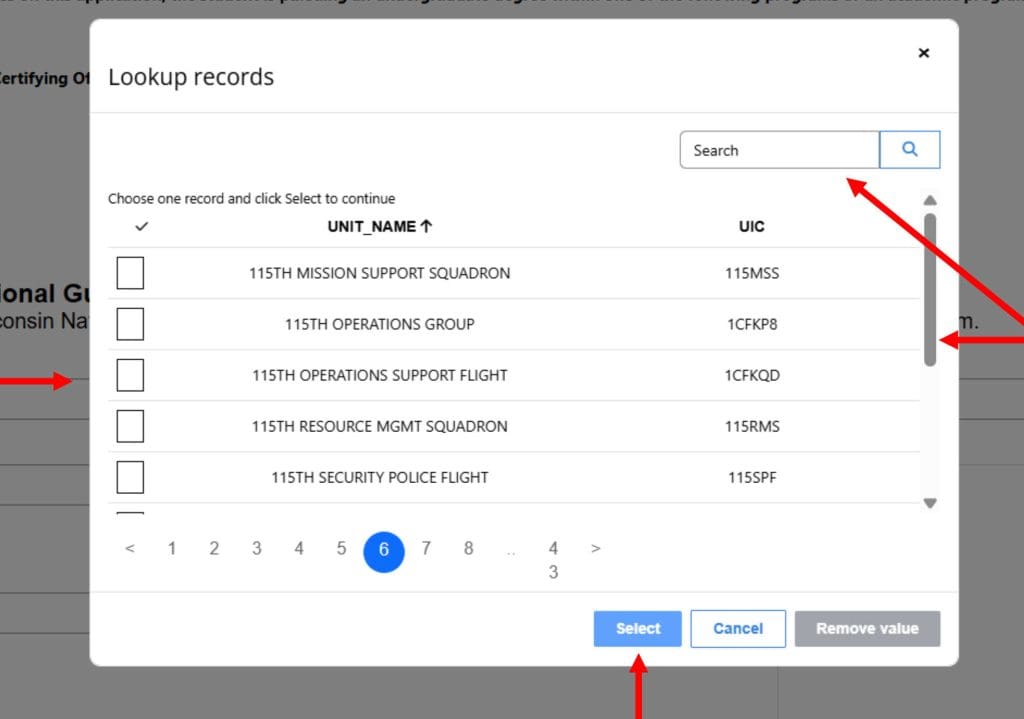
- Search for the Student’s Unit Either by Typing Into the Search Box or by Scrolling
- Check the Box next to the Correct Unit Code
- Click on Select
- Select the Student’s Enlistment Date Either by Typing it in or Using the Calendar Symbol
Use MM/DD/YYYY format - Type in Your Name
- Select the Student’s ETS Date Either by Typing it in or Using the Calendar Symbol
Use MM/DD/YYYY format - Type in the Student’s Education Code
- Type in any Flag or AWOL Information for this Student in Comments
- Click Submit Once Finished
OR Click Not Enlisted ONLY if the Student is Enlisted in Another Branch of the Military

The Initial Certification of the Student’s Application has Been Completed Successfully. Go Back to Initial Applications Queue to Certify Another Using the List Application Menu
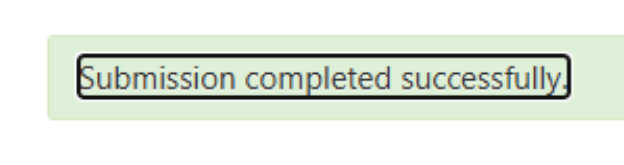
NOTE: The application you certified will no longer be in the queue. You will not be able to access it again or see what you entered.
Recertifying an Application
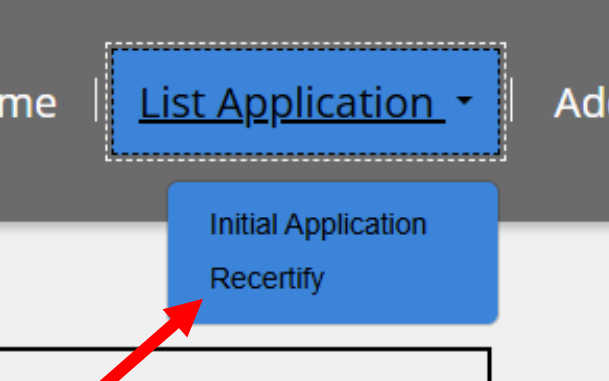
Navigate Back to the Home Page and Click on List Application then select Recertify to review applications
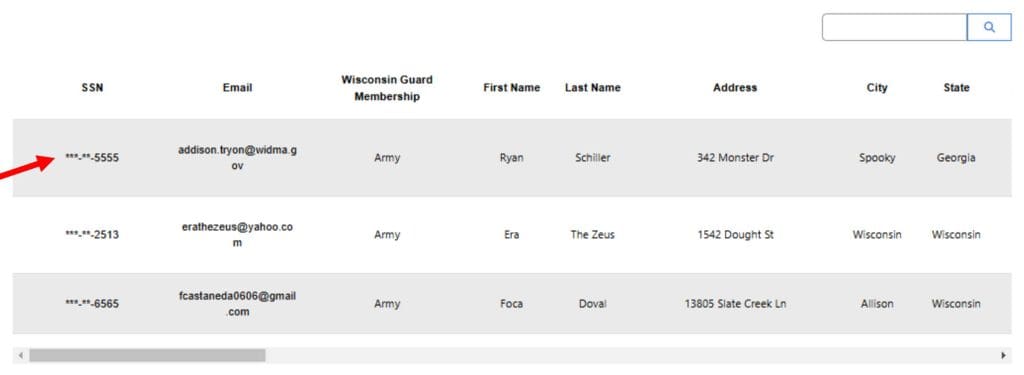
Click on the SSN to see an Application
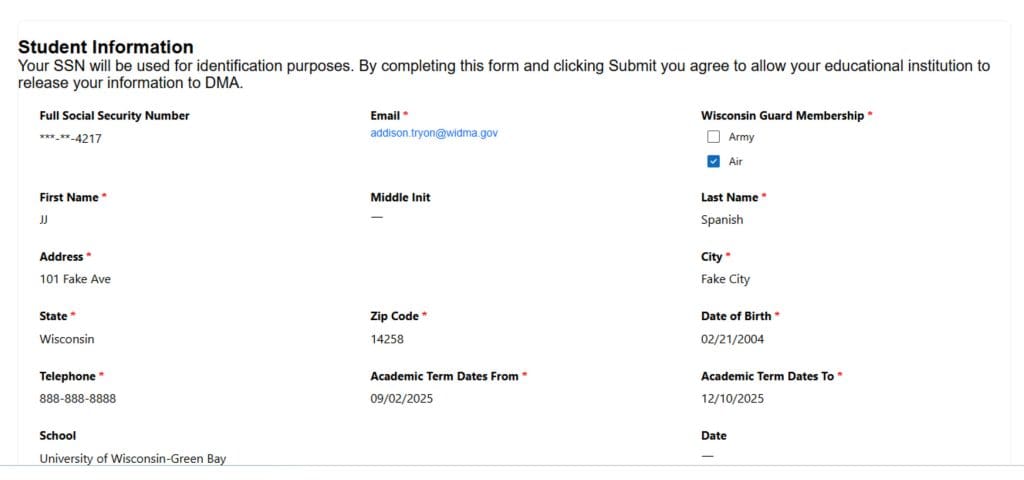
When you click through, student information will open. Scroll down to the Wisconsin National Guard Information section of the application.
- Choose Yes of No if the student was an actively drilling member of the WING
- Choose Yes or No if the student was flagged or had more than 8 AWOLs
- Write any Comments or Explanations
- Type in Your Name
- Click Submit Once the Recertification is Complete
- Make Sure the Date is Today’s Date
Use MM/DD/YYYY format

This Screen Means the Recertification of the Student’s Application has Been Completed Successfully. Go Back to the Recertification Queue to Recertify Another Using the List Application Menu.
NOTE: The application you recertified will no longer be in the queue. You will not be able to access it again or see what you entered.
Questions?
Contact the DMA Tuition Grant Administrator:
Email: wingtuitiongrant@widma.gov
Phone: 608-242-3159