

Logging In
Follow this link: https://widma.powerappsportals.us/
On the home page Click “Sign In” in the upper right hand corner.

Login Using your MyWisconsinID information
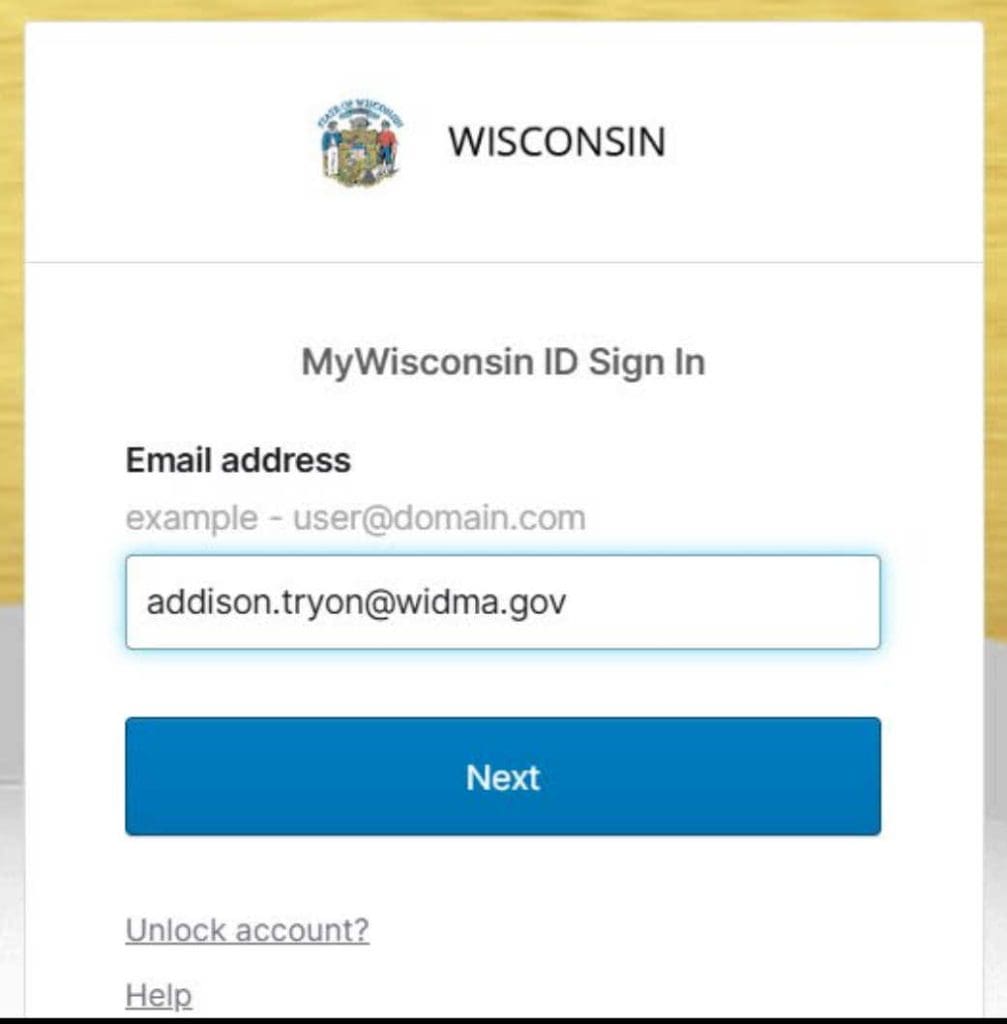
Don’t have a MyWisconsinID?
Follow this link to create one: https://det.wi.gov/pages/mywisconsin_ID_Self_Registration.aspx
Creating a Profile in the System
Click on your name in the upper right hand corner and then select Profile

Enter Your Name, Email and Phone Number

Select Student from the Contact Type drop down list
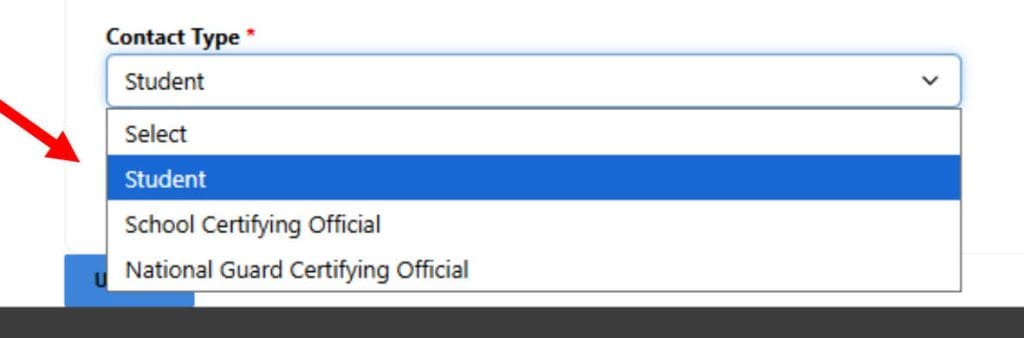
Click Update

You will get a message that reads “Your request to update your profile has been submitted successfully!” This means the update to your profile was successful. You will need to wait a couple of minutes for the system to refresh before you can create an application.

Creating an Application
Navigate back to the Home Page and click on Create Application in the upper right hand corner
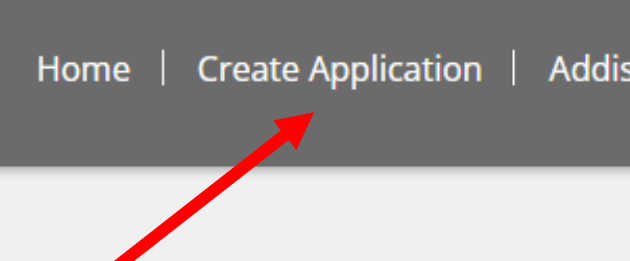
Read the Instructions at the top of the page and begin filling out the form
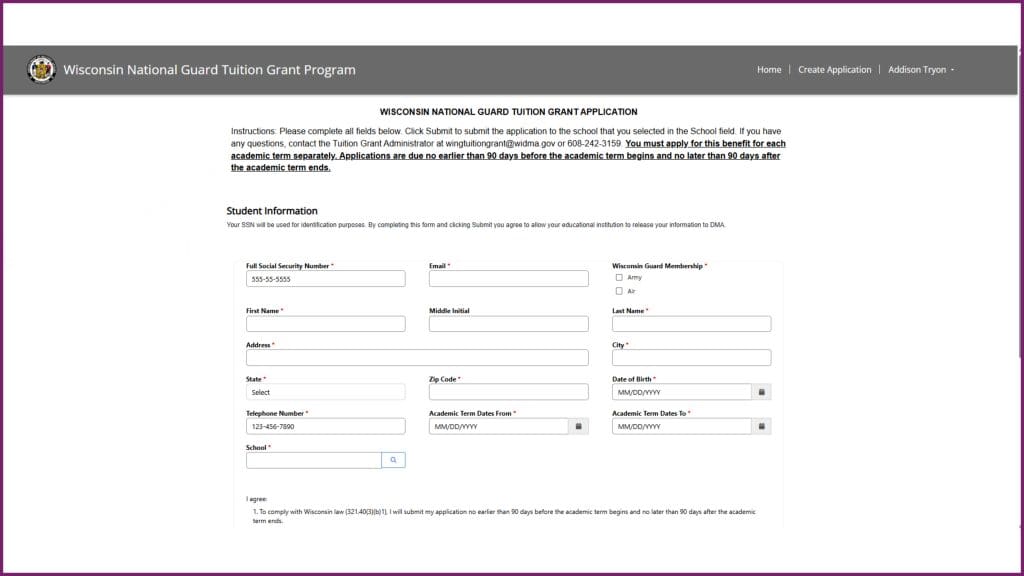
Fill out the form and be sure to enter in all of the following fields:
- Enter your full SSN
- Enter Your Email
NOTE: This is the email address that will receive all later notifications about the status of your application. - Select your Branch of the Wisconsin National Guard
- Enter your legal First Name, Middle Initial, and Last Name
NOTE: If your name has changed, you can enter the new name into these fields.
It will automatically update your information where your historical applications are stored. Only the DMA Tuition Grant Administrator (TGA) can access your historical applications. - Enter your street Address, City, State and Zip Code
NOTE: If you have a new address, enter the new one into these fields.
It will automatically update your information where your historical applications are stored. Only the DMA Tuition Grant Administrator (TGA) can access your historical applications. - Enter your Date of Birth.
This is used to verify your identity. - Enter your Telephone Number
- Select the Beginning date of the Academic Term for this application either by:
Typing the date into the box OR selecting the Calendar icon
NOTE: You must submit a new application for each academic term for which you wish to use the WING Tuition Grant. - Select the Ending date of the Academic Term for this application either by:
Typing the date into the box OR selecting the Calendar icon
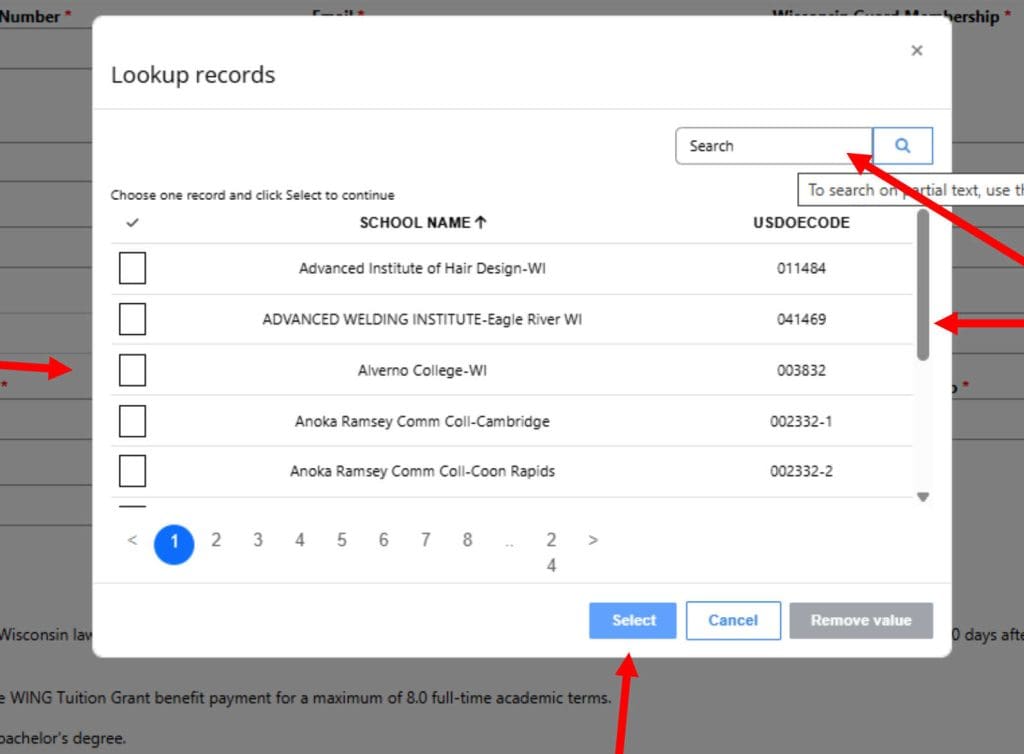
NOTE: You must submit a new application for each academic term for which you wish to use the WING Tuition Grant. - Search for your School where you are attending/attended this academic term by Clicking on the Magnifying Glass iconNOTE: If you attend two schools in same academic term, you will need to submit two applications for that term. One for each school.
NOTE: If you attend two schools in same academic term, you will need to submit two applications for that term. One for each school.
- Search for your School either by Typing the name into the Search Box OR Scrolling
- Check the Box next to your School
- Click Select
- Read all statements under “I agree”
- Check box next to “I agree to the above statements”
- Click Submit
NOTE: Inaccurate information may delay application processing or payment

A message will appear which reads “Your application has been submitted. You will receive a confirmation ntoice to the email address you provided. Your application has been routed to the school you identified on the application for processing.” Your application has been successfully submitted. You should receive an email confirmation.

NOTE: You will receive notification updates at the email address you provided as your application goes through the rest of the process.
Questions?
Contact the DMA Tuition Grant Administrator:
Email: wingtuitiongrant@widma.gov
Phone: 608-242-3159